
01
Built for prompt led workflows
Describe what you want in natural language and let GPT Image 2 shape the composition.
Generate polished visuals with GPT Image 2, then refine details through clear, practical prompts.
Find prompt ideas, creative angles, and visual directions that help GPT Image 2 produce stronger results.
Original Image
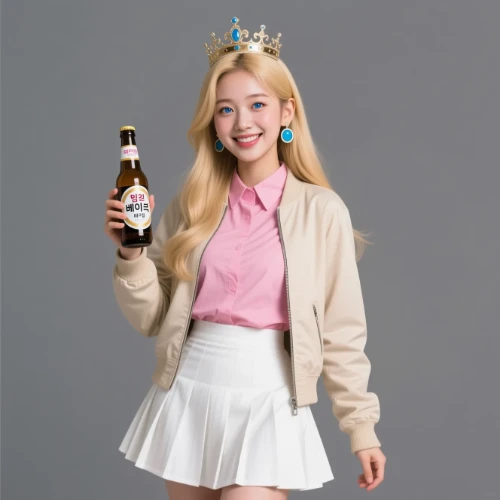
Change the clothes to sports
Generated Results
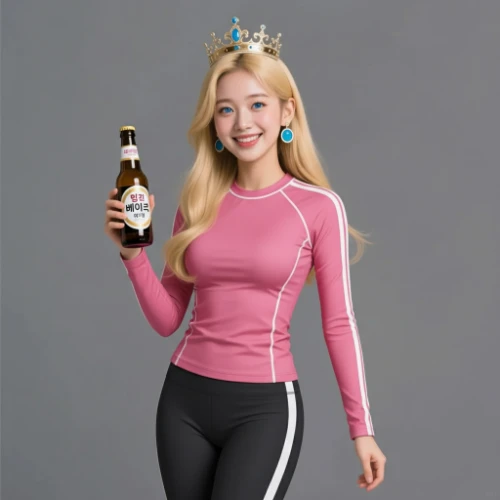
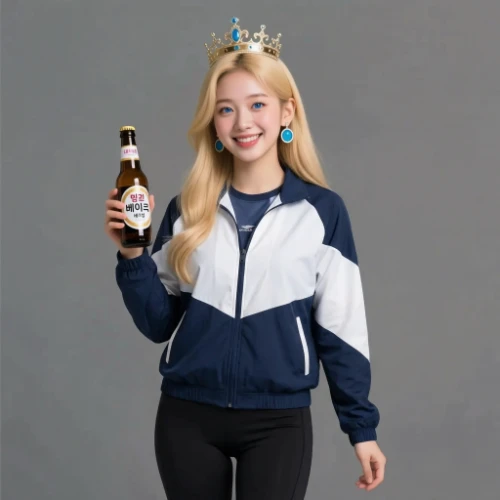
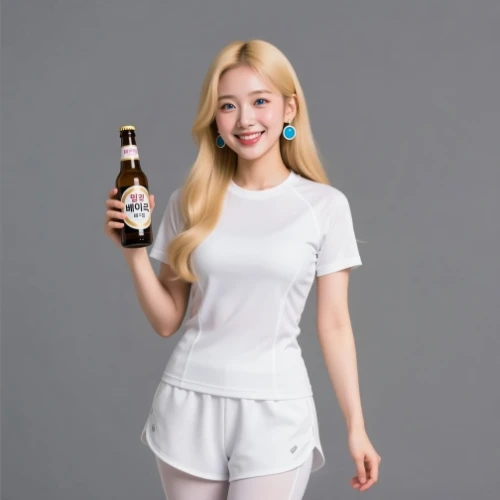
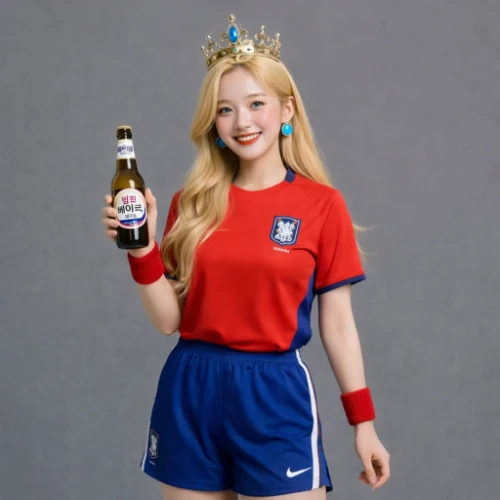
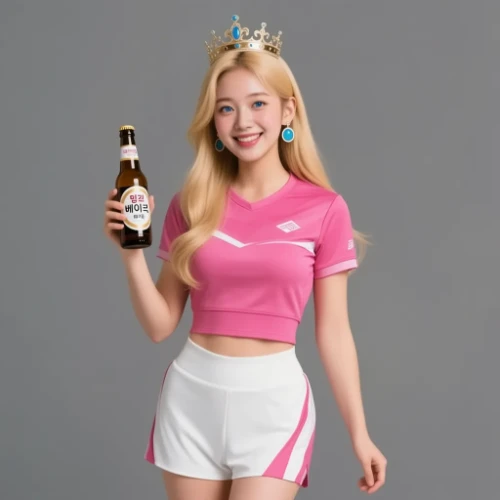
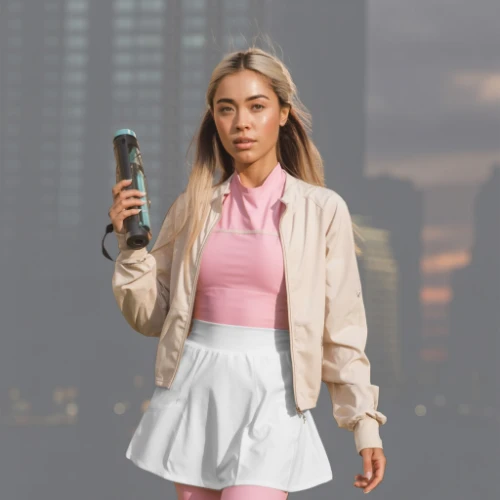
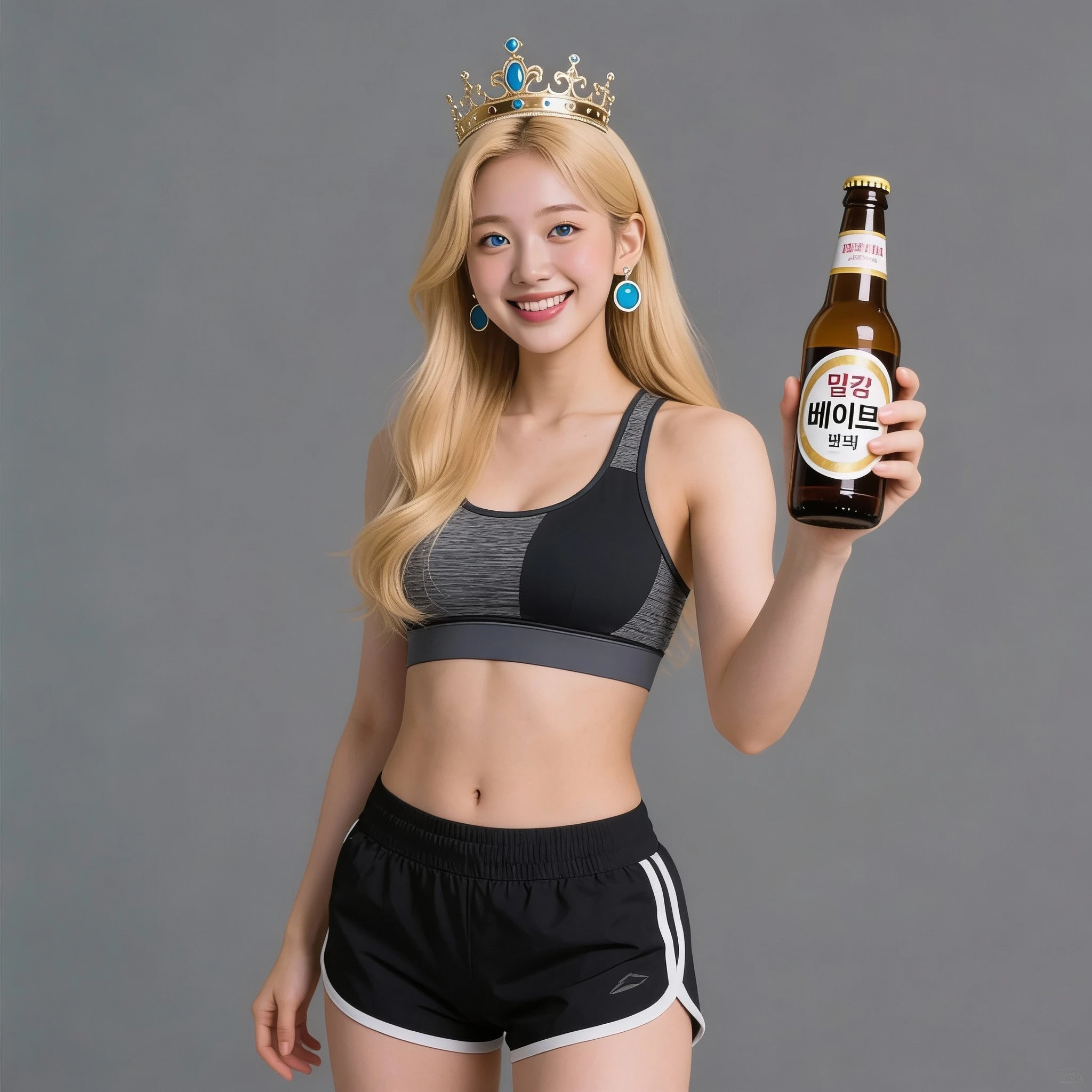
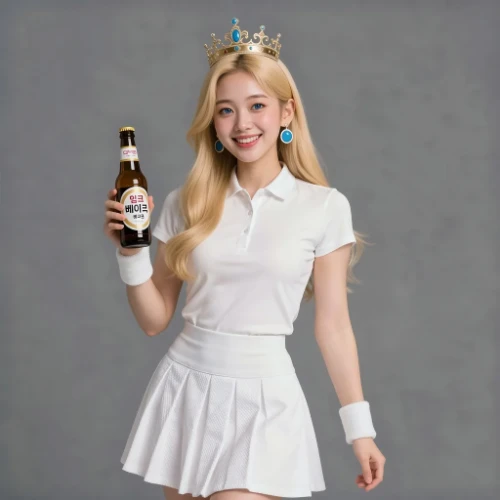


Describe what you want in natural language and let GPT Image 2 shape the composition.
It works well for concept art, product scenes, marketing assets, and quick visual drafts.
The page opens with GPT Image 2 already selected so you can start without extra setup.
Create a first version, review the details, and adjust the prompt until the image feels right.
Add the subject, setting, mood, and style in simple English for more controlled output.
One workflow can support product, social, experimental, and presentation focused use cases.
Go to the image model page inside Maker AI and begin with GPT Image 2 already selected.
State the subject, lighting, camera angle, background, and style you want the model to follow.
Compare the output, improve the prompt, and save the version that best fits your project.
Turn a written idea into a fresh visual that matches your target style.
Improve framing, mood, and composition by changing a few words in the prompt.
The default model is selected for you, which makes the first step simple and fast.
Default model
GPT Image 2
Automatically selected on this page for immediate use
Copy language
English only
The messaging is intentionally written for search visibility and clarity
Use case
General purpose
A good fit for creative, commercial, and experimental image work
Yes. Maker AI opens this page with GPT Image 2 selected so users can move straight into image creation.
People often search for GPT Image 2, gpt image api, chatgpt image, or openai image 2 when they want a practical image tool.
It is positioned as a guided workflow for clearer prompts, stronger composition, and more consistent creative output.
Yes. It is useful for testing wording, exploring style changes, and checking which instructions produce the best result.
Short, specific prompts usually perform well. Include subject, scene, lighting, material, mood, and camera direction when relevant.
Yes. It can support social visuals, ad concepts, landing page graphics, and polished mockups for early stage campaigns.
If you want the right workflow, comparing GPT Image 2 with openai api based tools, chatgpt image, or other generators can be helpful.
The English version is optimized first for SEO, clarity, and consistency, and localization can be added later without changing the structure.
Yes. It is a strong fit for early drafts, visual exploration, and idea validation before moving into final production design.
Review the output, refine the prompt, test another variation, and keep the strongest version for reuse or further editing.