
01
Start with a clear subject
Define what the image should show before you spend time on style details or advanced effects.
Find practical image prompt ideas for product shots, portraits, and reference images that work well with Maker AI workflows.
Curated from creator examples and official references. Some prompts may keep the original language.
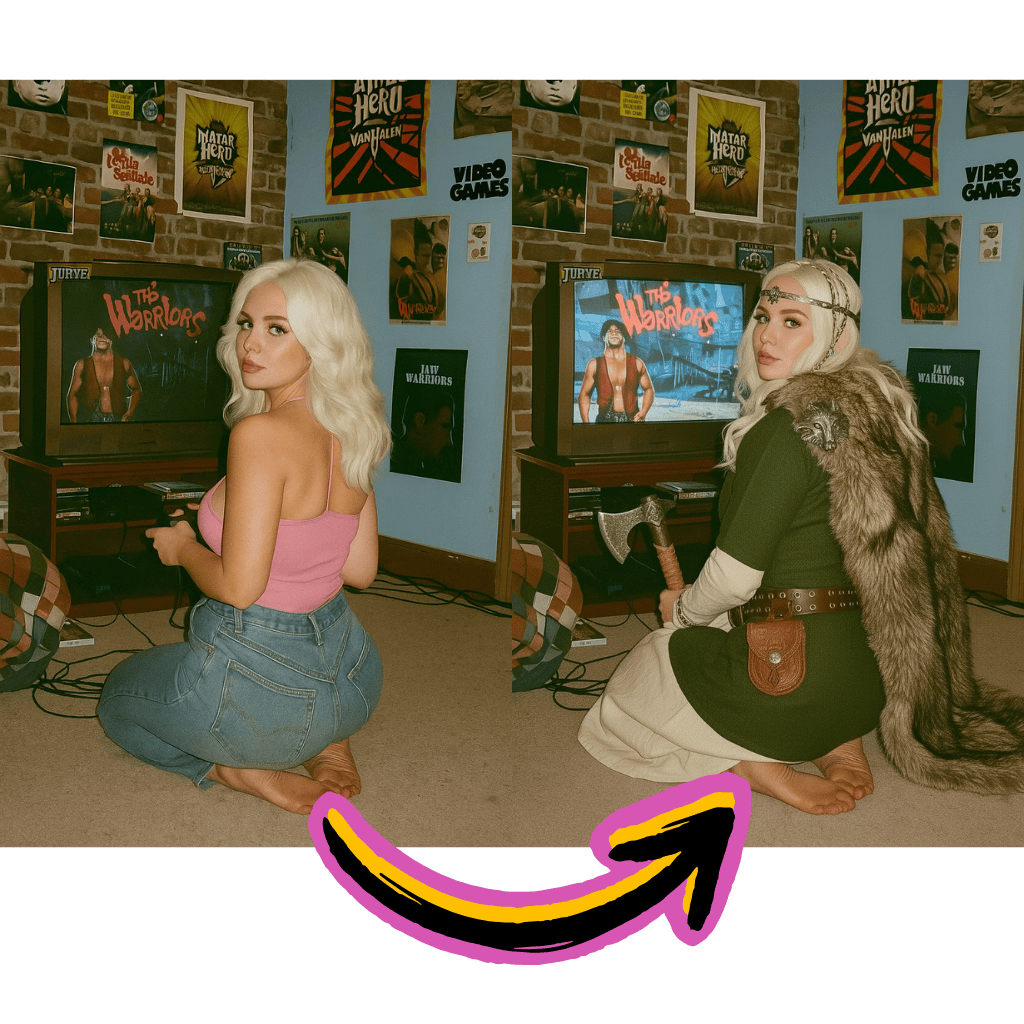
Define what the image should show before you spend time on style details or advanced effects.
Use reusable cues for lighting, color, lens, and rendering style so the next draft stays close to the first.
Turn good reference images into stronger starting points for image-to-video tests with less guesswork.
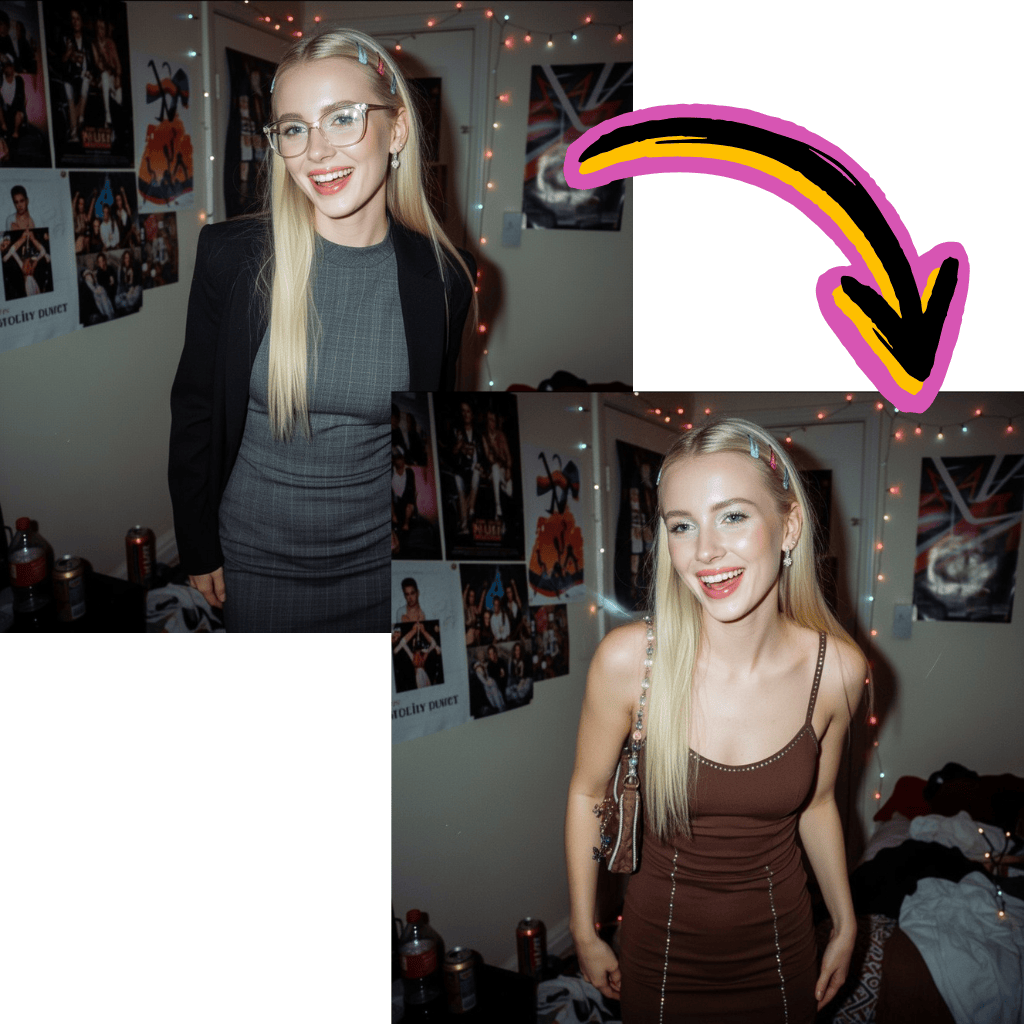
Start from a proven structure instead of a blank page and get to a usable idea sooner.
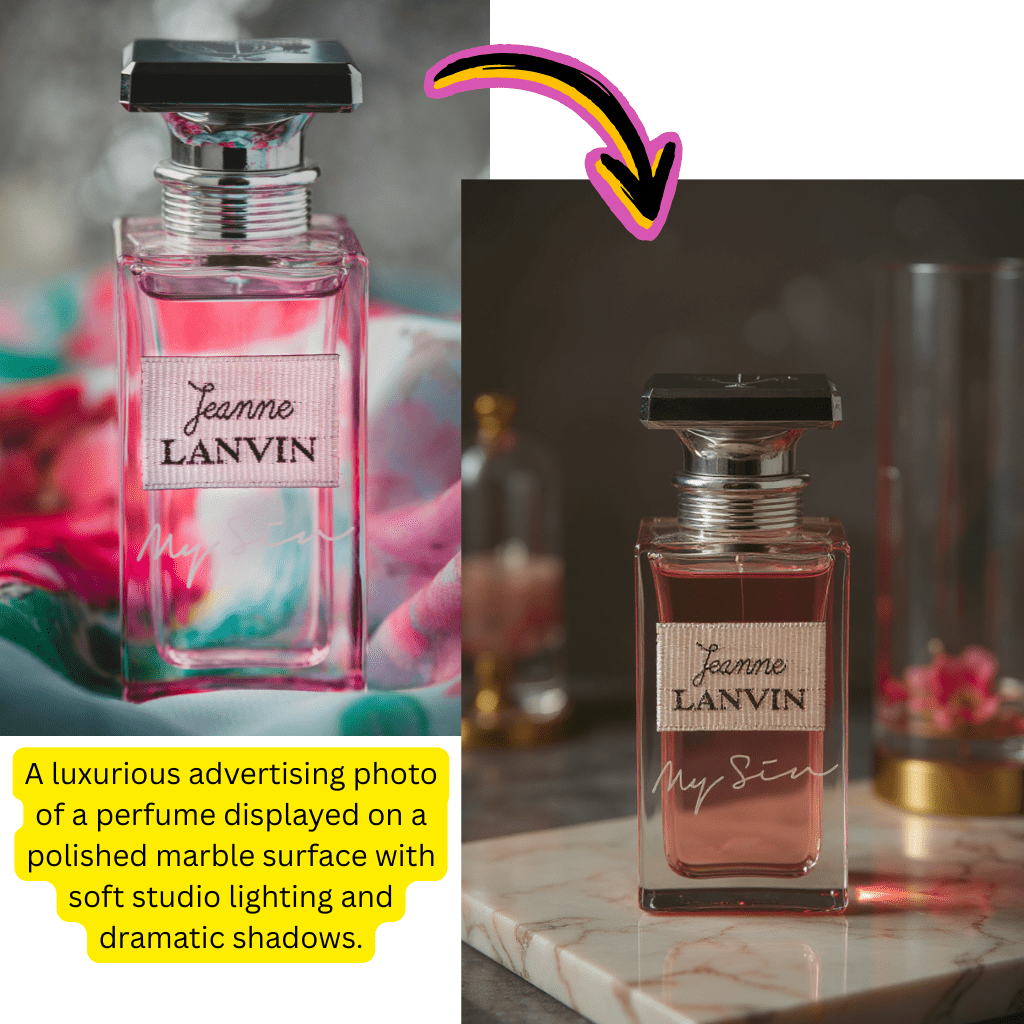
Keep composition, lighting, and subject cues aligned so the result feels intentional.
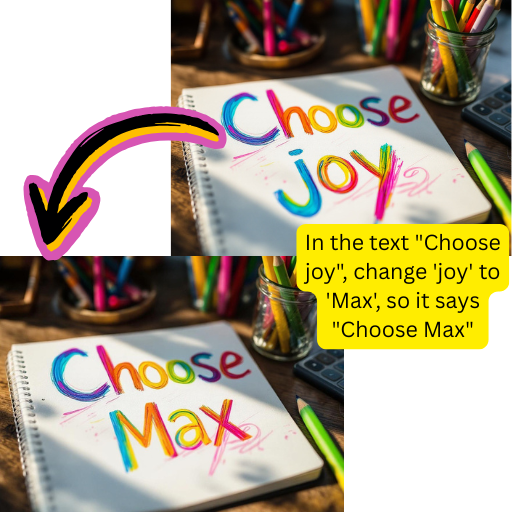
Use stills that already look close to the final concept, so image-to-video tests need fewer revisions.
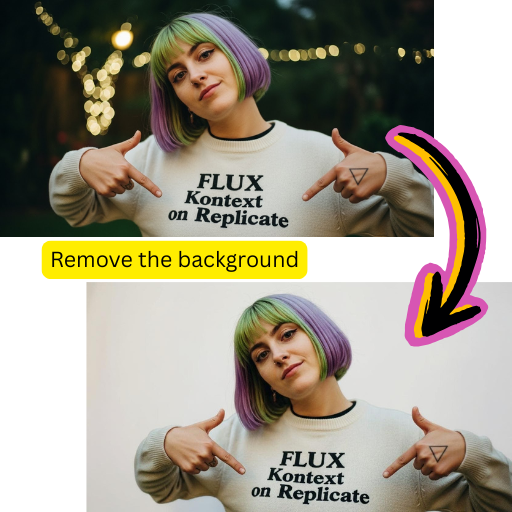
A shared prompt library makes it easier for different people to produce work that feels on brand.
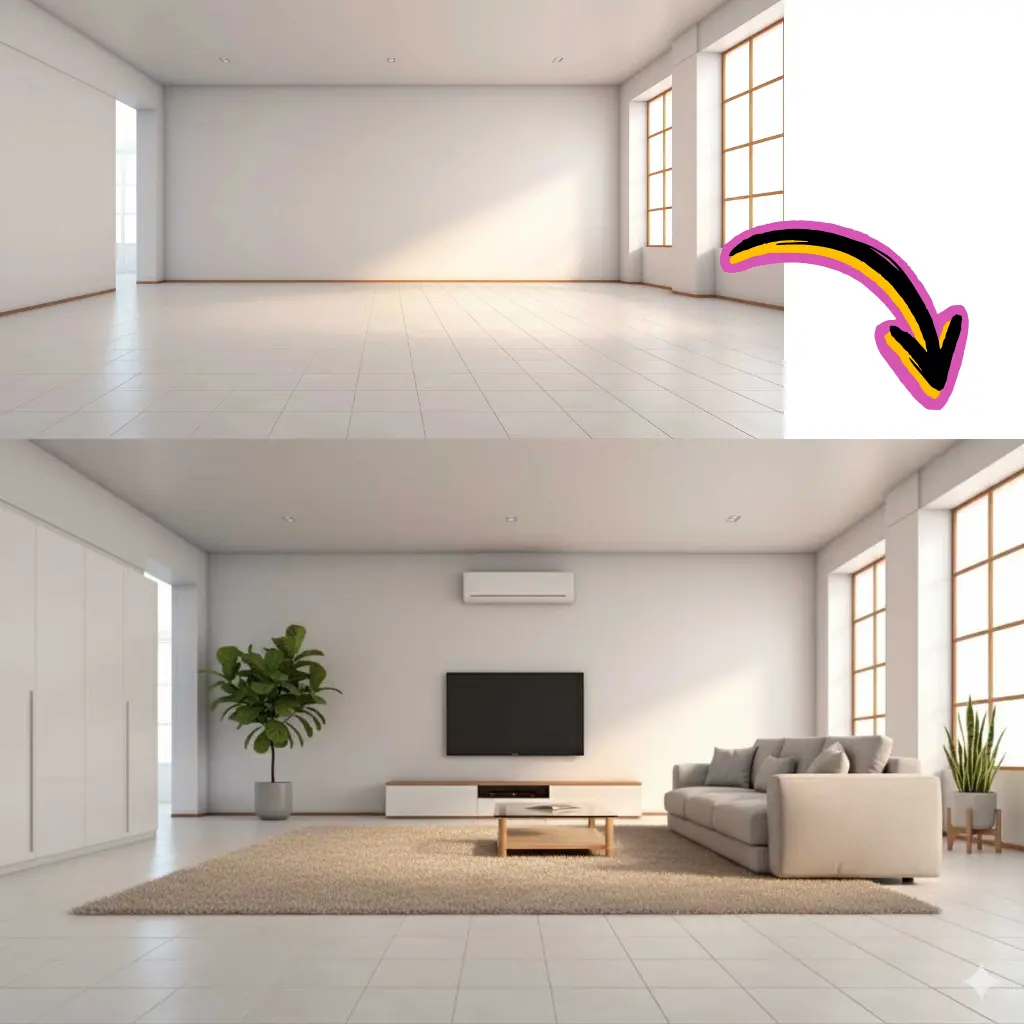
Decide whether the image is for a product, portrait, social post, or reference frame.
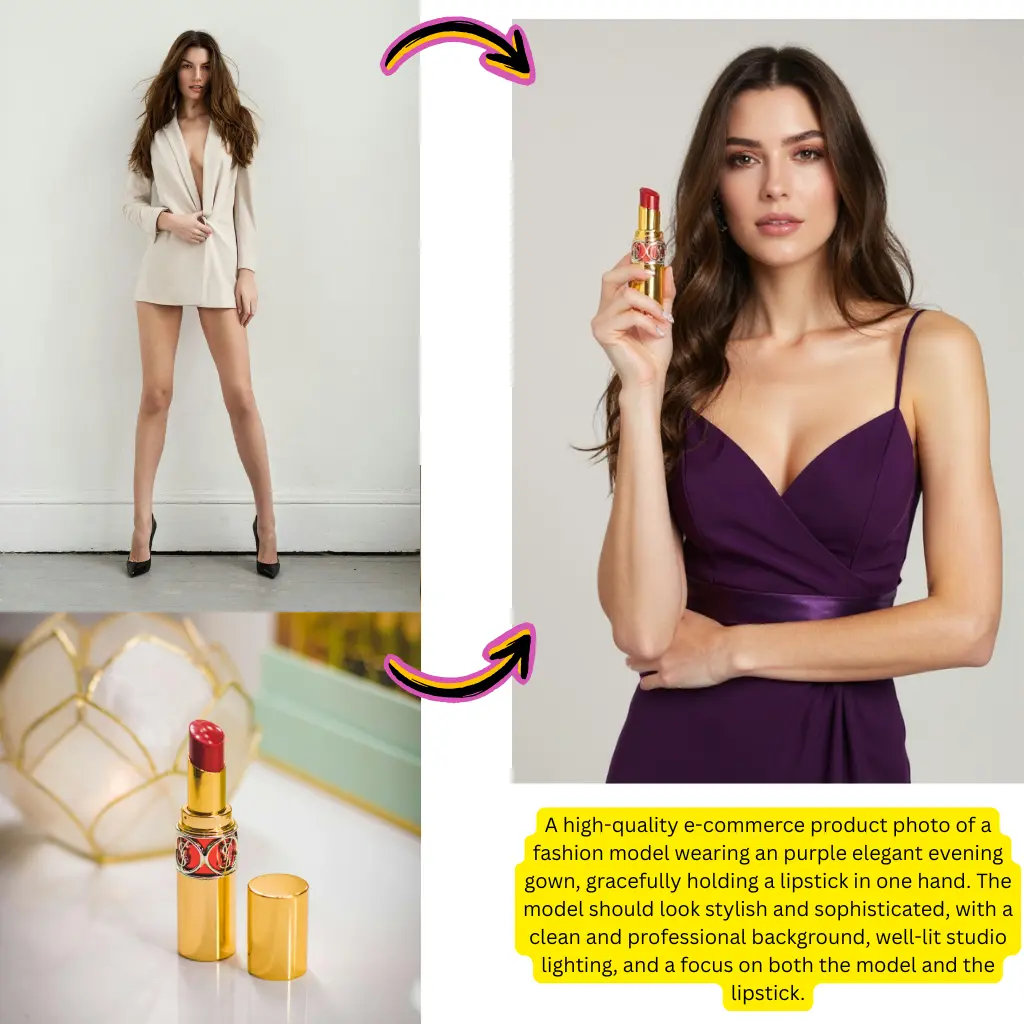
State subject, style, lighting, and framing in plain language.
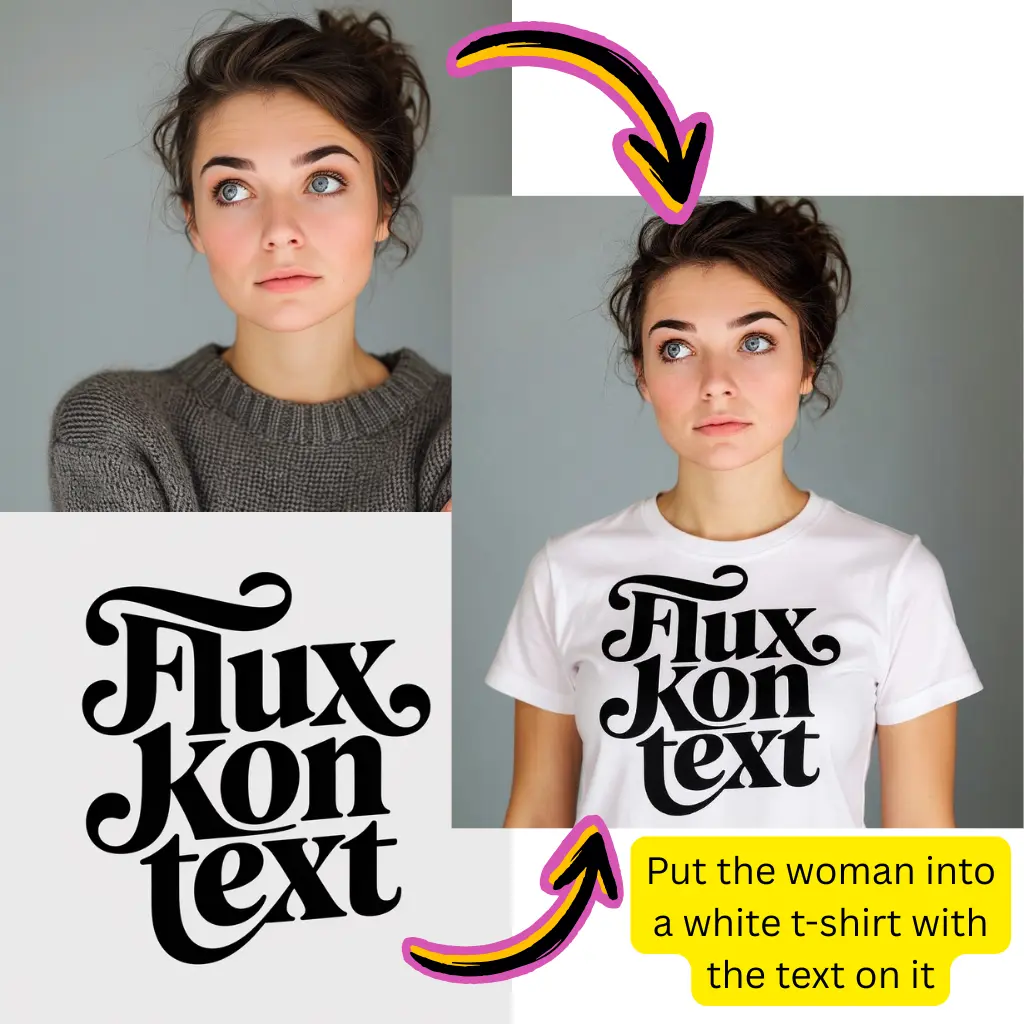
Change one part at a time so you can see which edit improved the result.
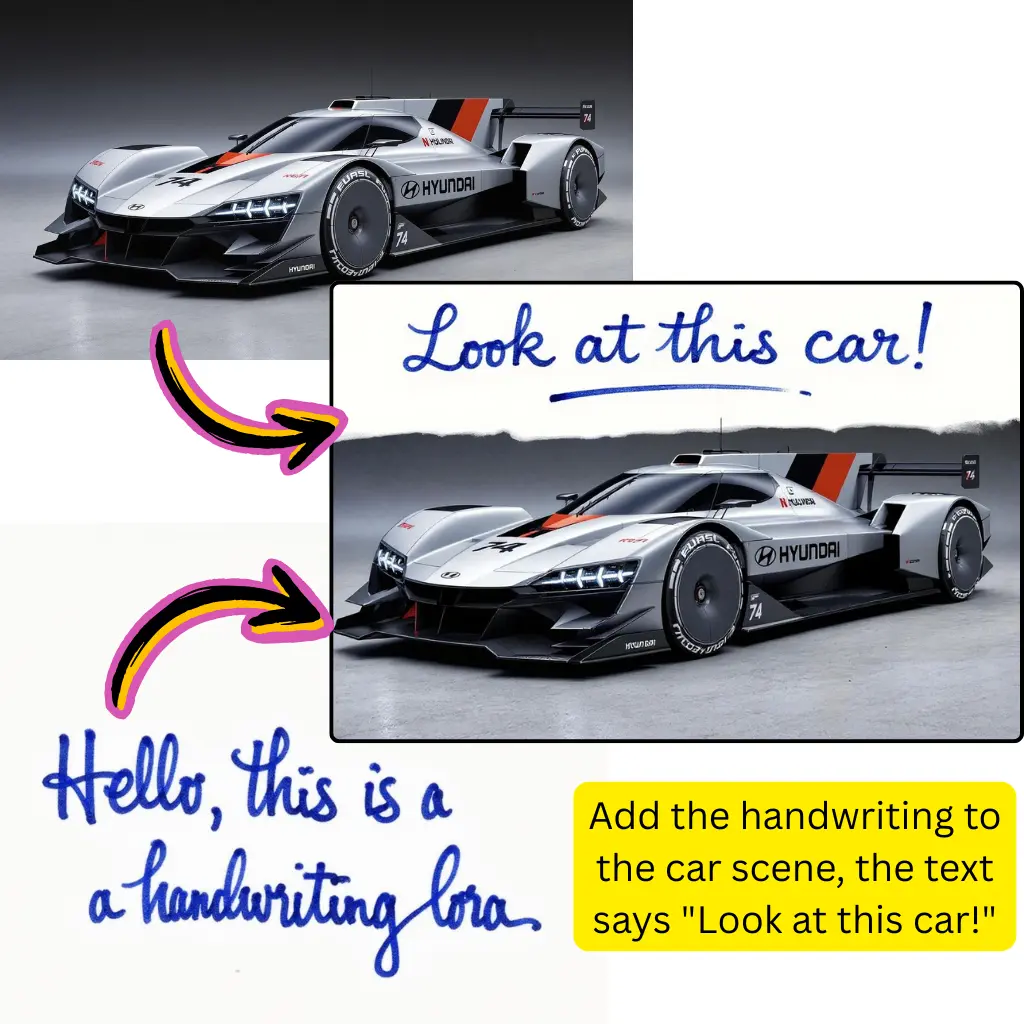
Save the strongest prompt and use it again when you need a similar look.
Jump to product, portrait, editorial, or concept ideas instead of digging through unrelated prompts.
Take one strong reference and tailor it to your brand, audience, or model.
Choose prompts that create cleaner frames for social posts, landing pages, and Maker AI handoff work.
Test a few directions with the same subject so the visual difference is easy to read.
Review, copy, and save ideas wherever you are.
Refresh the library as new looks become useful, then retire the weaker prompts.
A good prompt is short, specific, and easy to repeat. Start with the subject, then add composition, lighting, material, and mood only when they help the shot.
Yes. Strong still images make better starting points for image-to-video tests because the subject and framing are already clear.
Add details that are easy to see, such as the angle, surface, lighting quality, and a stronger subject description.
Use text when the idea is still loose. Use an image when composition or layout matters more than the original concept.
Yes. Keep the structure, then adapt the wording to match each model's strengths and quirks.
Refresh it whenever you find a stronger prompt pattern or notice that older examples no longer match the results you want.